
How to Update Your Google Business Profile After a Move, Rebrand or Ownership Change
Let’s say you just moved to a new location, changed your business name, or handed the reins over to a new owner. What happens to your Google Business Profile?
Most of the time, you won’t need to start over from scratch. If you’ve moved, you can usually keep the profile you already have. The same goes if you’ve just taken over the business. You usually won’t need a brand-new profile. The existing one can be transferred over to you.
A rebrand, on the other hand, is a little different. You might be able to keep the same profile, but it depends a lot on how much the core business has actually changed.
So, let’s take these one at a time, starting with a move to a new location.
How to Update a Google Business Profile After Moving to a New Address
If you’re moving the same business to a new address, you don’t need to make a new profile. Just update the address on the one you already have.
Start by going to your Google Business Profile. Then:
- Select Edit profile.
- Go to Location.
- Select Business location.
- Add the new address and save it.
- If Google puts the map pin in the wrong place, move that too.
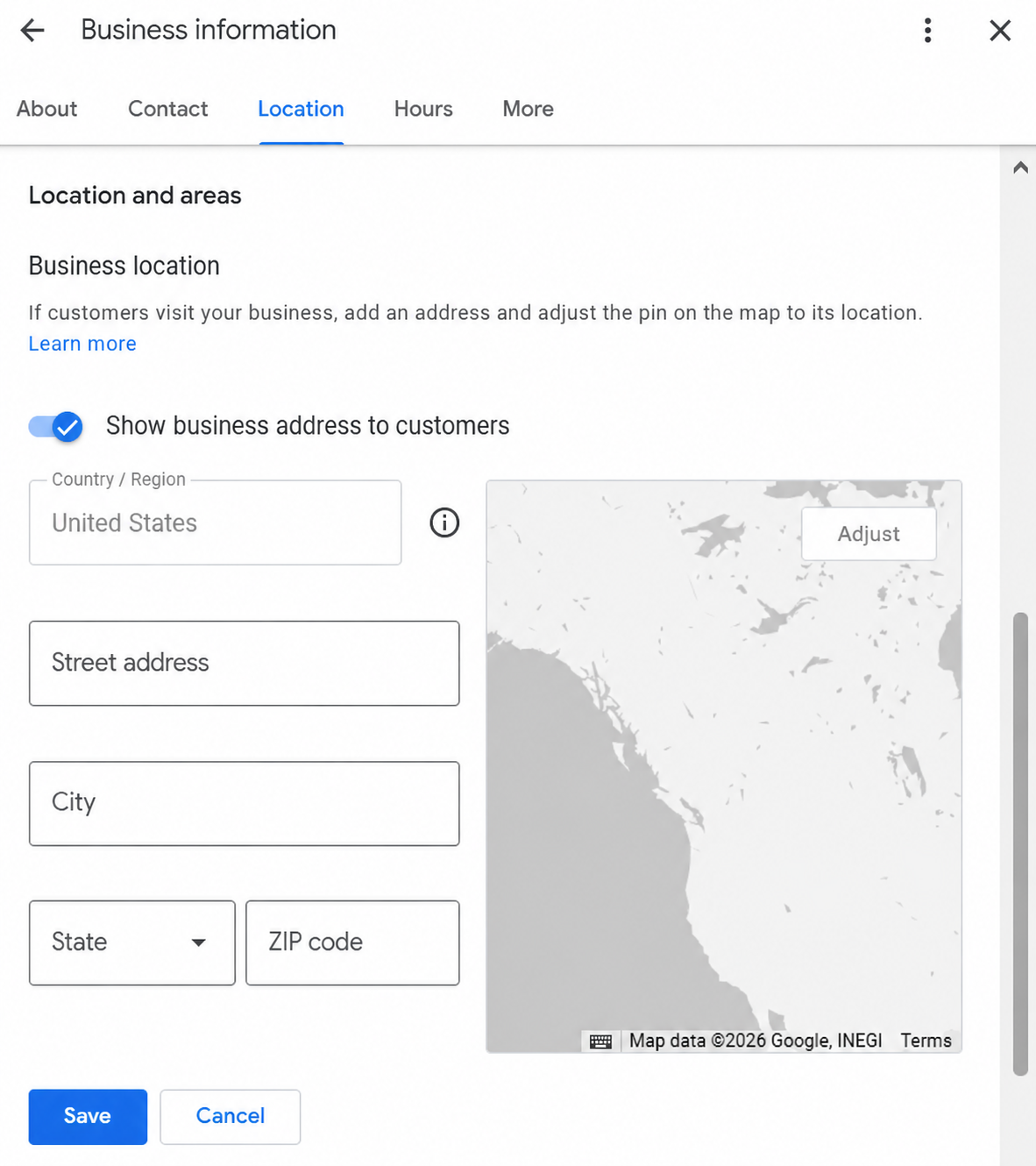
If your profile was already verified, Google will ask you to verify it again after the move. They’ll show you which verification methods are available for your profile. Just pick one and follow the steps.
If they ask you to verify by mail, do not change the business name, address or category while you’re waiting. Don’t request another code either. Either one can invalidate the code you already requested and drag the whole process out.
Now, what if customers don’t actually come to your address? If you go to them, hide the address and show your service area instead. That’s the setup Google recommends for service-area businesses.
And again, you don’t need a brand-new profile just because you moved. As long as it’s still the same business with the same name, the reviews will usually move with it. There are a few exceptions. For certain business categories, like hotels, golf courses, or scenic attractions, reviews might not move automatically.
How to Update a Google Business Profile After Rebranding
This is where things get a little trickier.
You can keep the same profile after a rebrand, but only if the name change is relatively minor. The core business still needs to be the same, including the services in the name and the business category.
If the rebrand qualifies, just update the name on the existing profile.
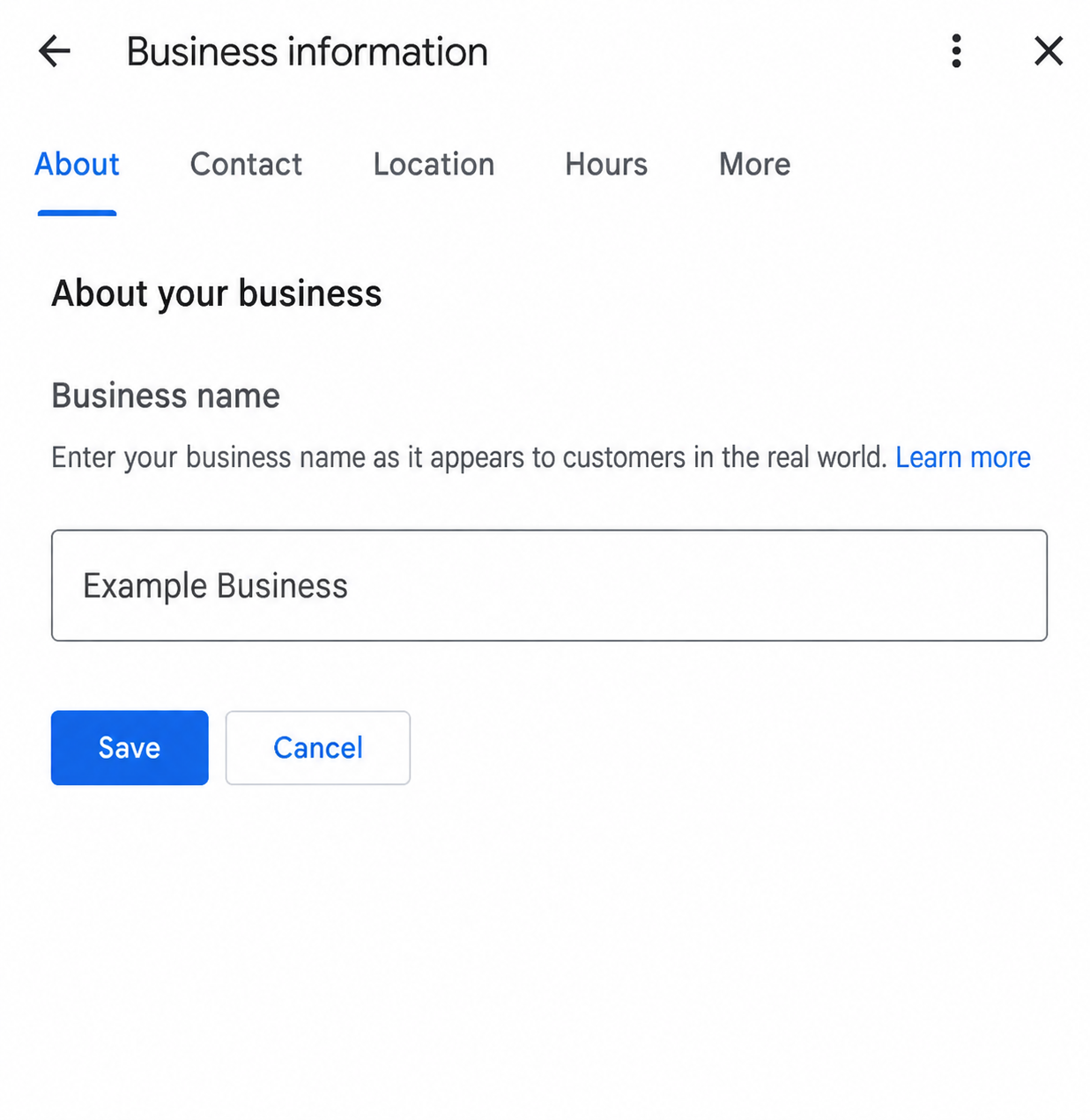
Make sure the new name is already showing up everywhere customers would expect to see it, like your storefront, website, stationery, and other branding. You might also be asked to verify the profile again after changing the name.
The good news is that if it’s still the same business, your reviews stay with the profile.
If the rebrand goes beyond a minor name change, though, you’ll need to treat it as a new business. That means closing the old profile and creating a new one under the new business name.
So the real question isn’t just whether the name changed. It’s whether the business itself is still recognizably the same.
How to Transfer a Google Business Profile to a New Owner
If you’ve just taken over a business and it’s still operating under the same name, you usually don’t need a new Google Business Profile. The existing profile can be transferred over to you, along with the business information and reviews already attached to it.
Whoever currently holds primary ownership of the Google Business Profile can add you through Business Profile settings, then People and access.
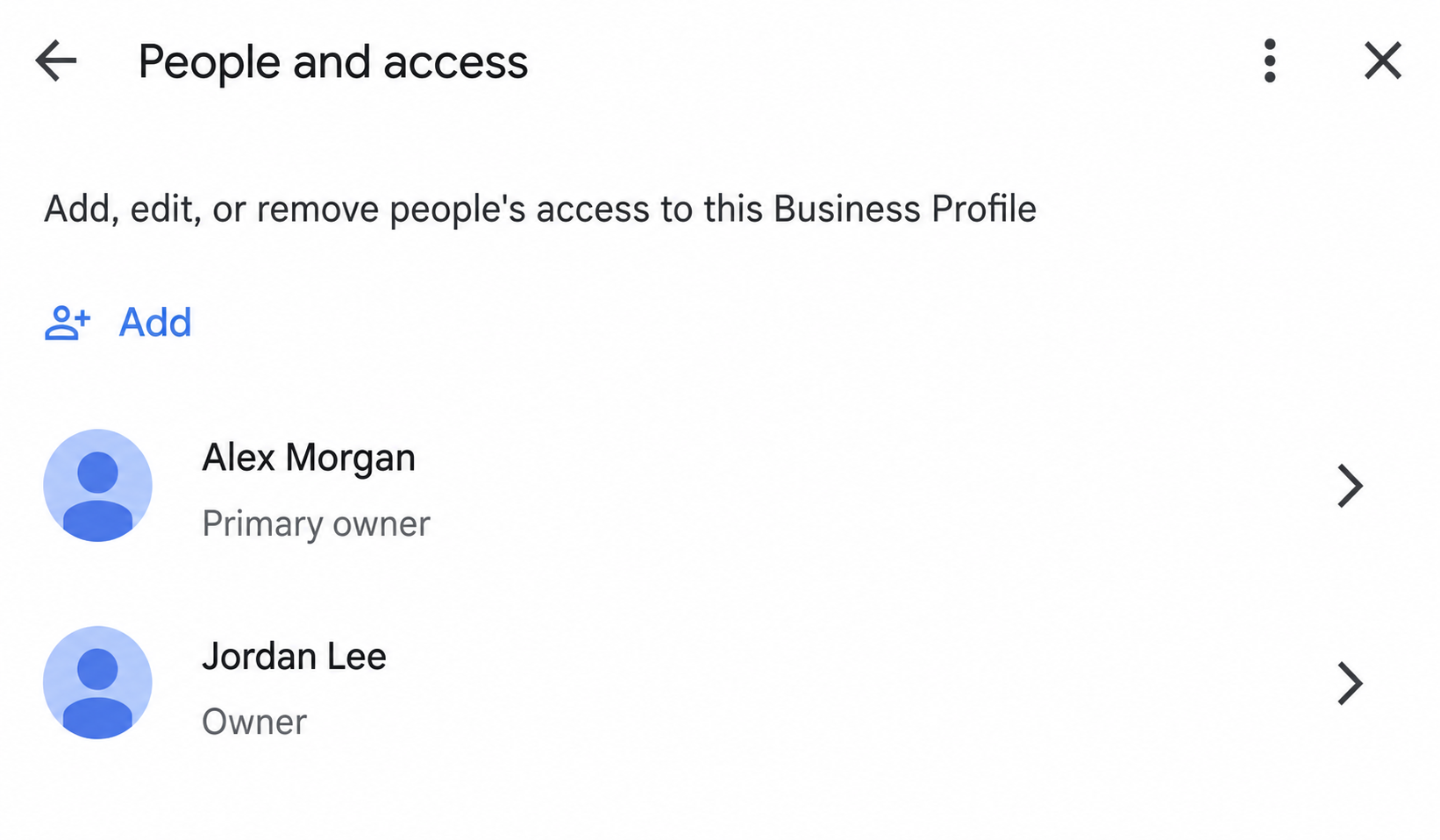
Google Business Profile People and access screen for transferring ownership
Once you’ve been added, they can transfer primary ownership to you.
There is one thing to plan around: new owners and managers have to wait seven days before they can use certain controls. That includes transferring primary ownership, removing other owners or managers, or deleting the profile. So don’t leave this until the day of the handover.
If the ownership change comes with a major rebrand, I’d treat that as a separate issue. A new owner by itself doesn’t mean you need a new profile. A major rebrand might.
What to Check on Your Google Business Profile After a Major Change
Once the main change is done, go through your profile the way a customer would. Check the name, address or service area, map pin, phone number, website, hours, photos, and anything else that might still be showing old information.
Basically, make sure everything on the profile matches the business as it exists now.
How to Keep Your Google Business Profile Working After a Change
Once you’ve made the change, keep an eye on the profile for a bit. Make sure the new details are showing correctly, nothing old has crept back in, and customers are seeing the business the way it exists now.
If you want someone to review the profile after the move, rebrand, or ownership change, fix anything that’s still off, and make sure it’s set up properly for local search, take a look at 360 Searchvertising’s Google Business Profile optimization services.